Blog
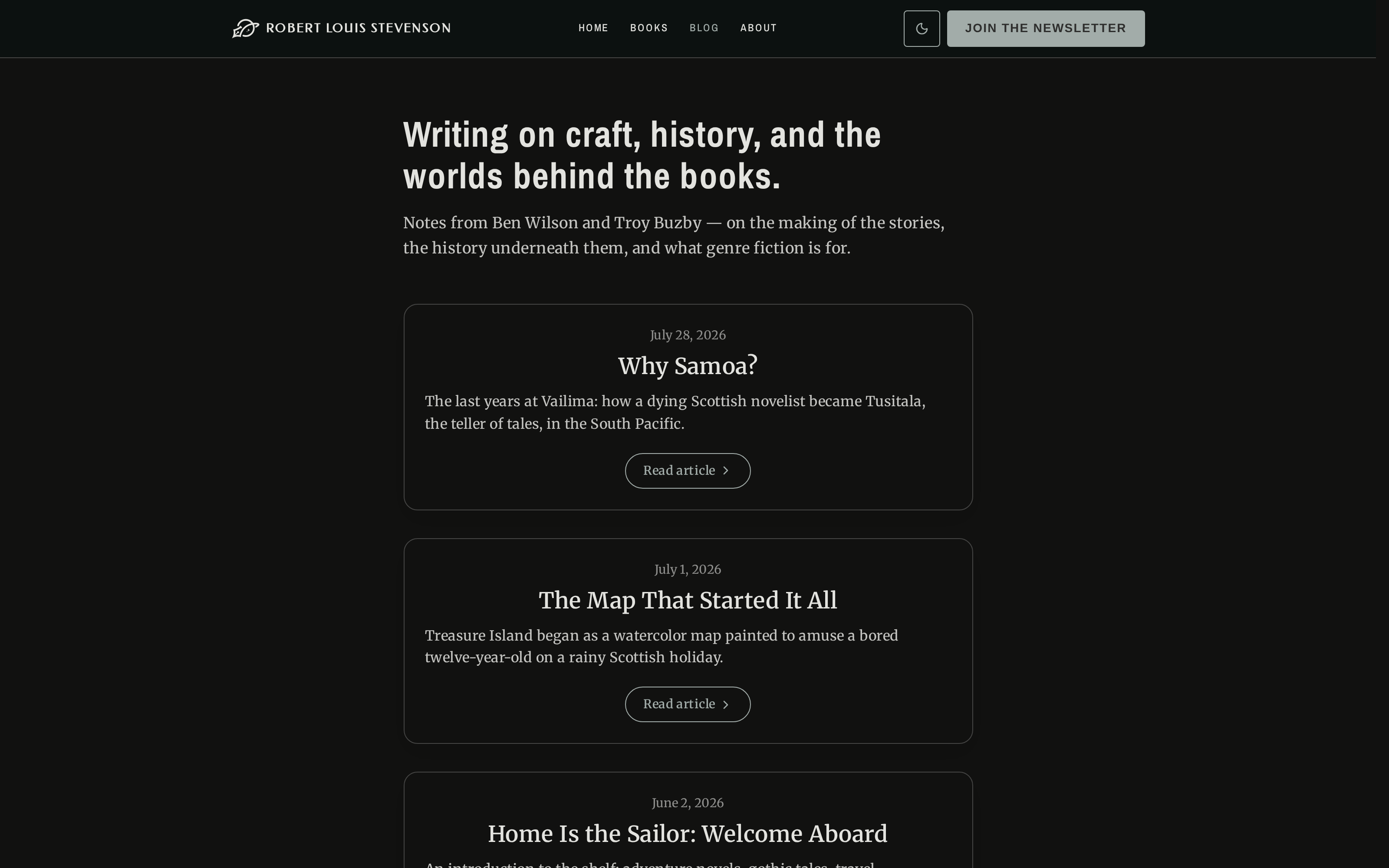
Your blog is where you publish articles for your readers. You write in a rich-text editor, save drafts privately, schedule posts to publish later, and — if you like — email a post to your subscribers. Published posts appear at /blog on your public site and in your RSS feed, and every post keeps a full history of its edits.
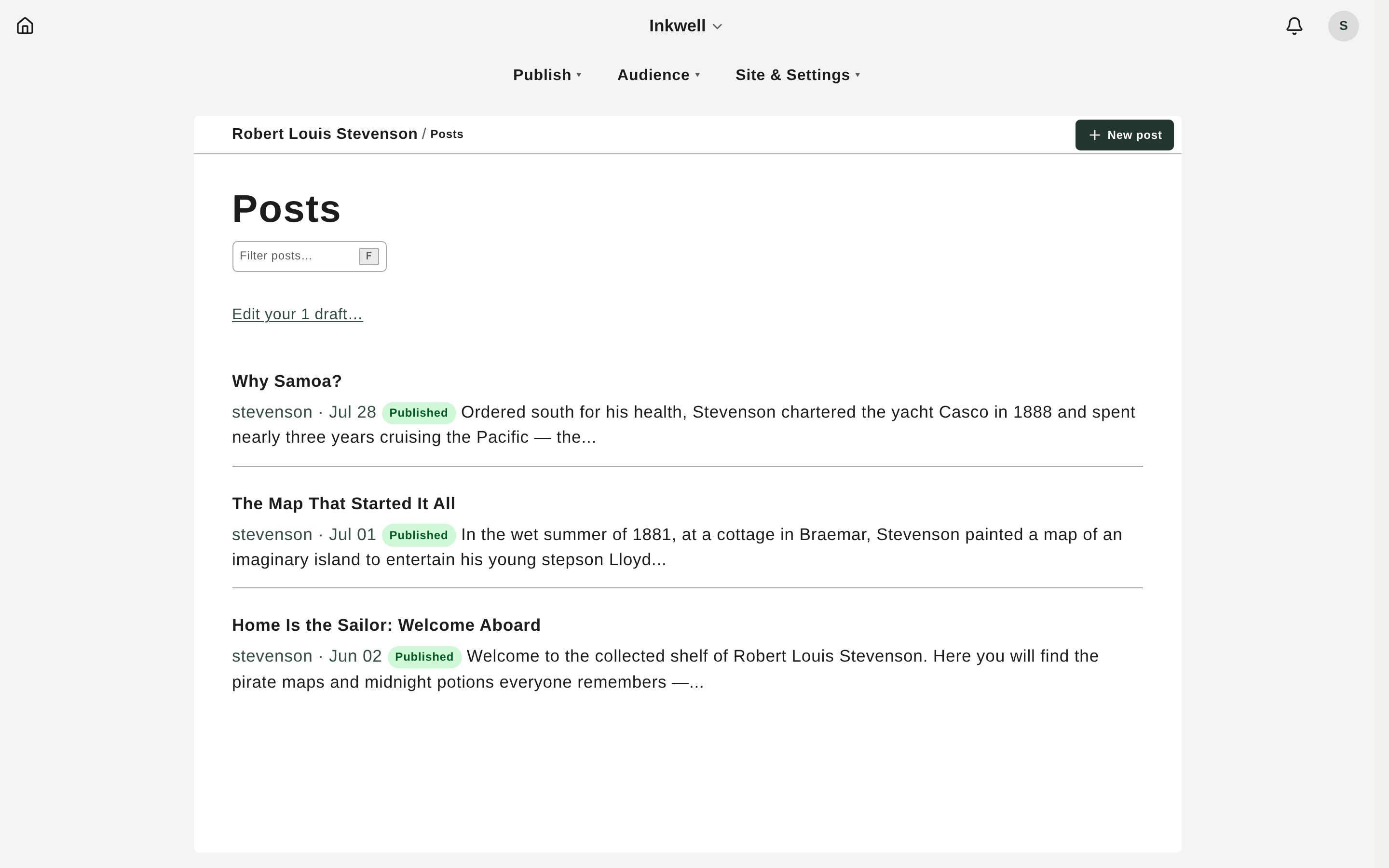
Open it from the admin at Posts.
Key ideas
- Drafts vs. published. A post starts as a private draft you can edit freely. When you publish, that version is frozen and goes live. Editing a published post creates a new version — the old ones are kept.
- Scheduling. Instead of publishing now, set a future date and time. The post stays a private draft until then, then publishes itself.
- Pinning. Pin a published post to keep it at the top of your blog, above newer posts.
- Excerpts. An optional short summary shown on the blog index and in search results. Leave it blank and the start of your post is used.
- Pen names. Attribute a post to one of your author personas. With no author set, it’s credited to your account name.
Write and publish a post
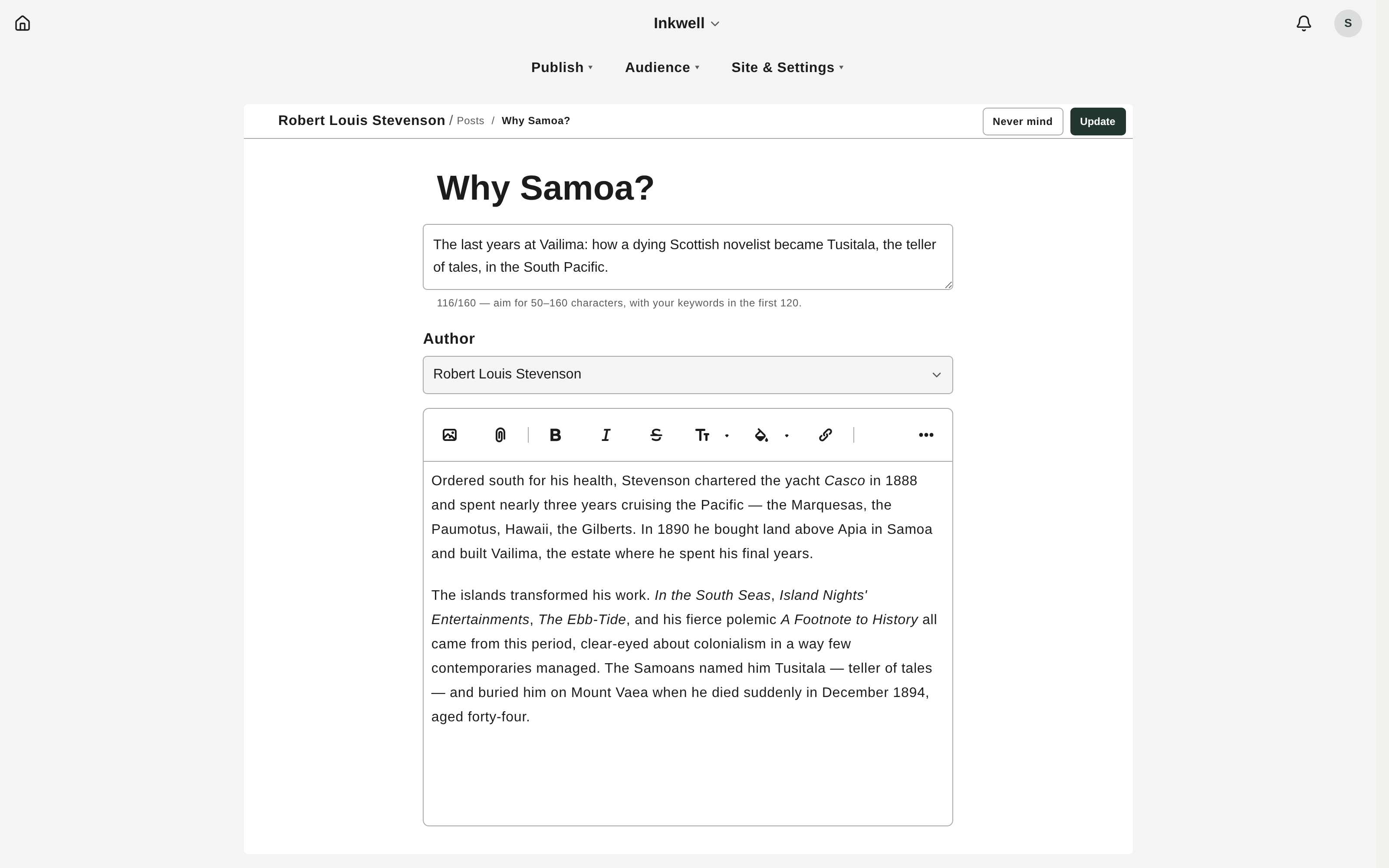
- On the Posts page, click New post.
- Enter a title.
- (Optional) Add an excerpt and choose an author.
- Write your post in the rich-text editor — headings, bold, italics, lists, links, quotes, and images.
- Click Save draft to keep it private, or Publish to make it live now.
Schedule a post
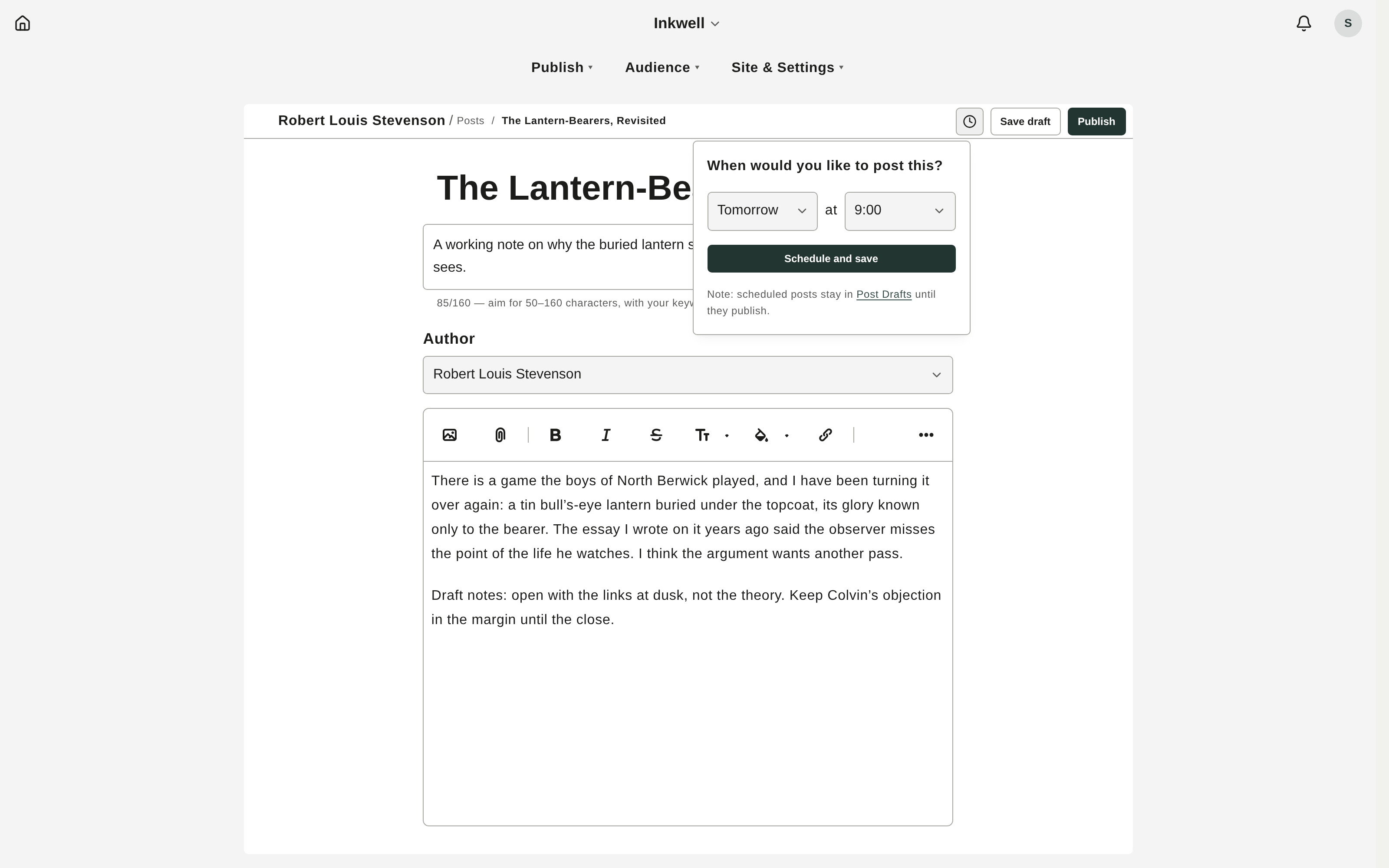
- In the composer, open the schedule control (the clock).
- Pick the date and time for the post to go live.
- Save. The post shows a Scheduled badge and stays editable until then; when the time arrives, it publishes automatically.
Edit, pin, and manage a post
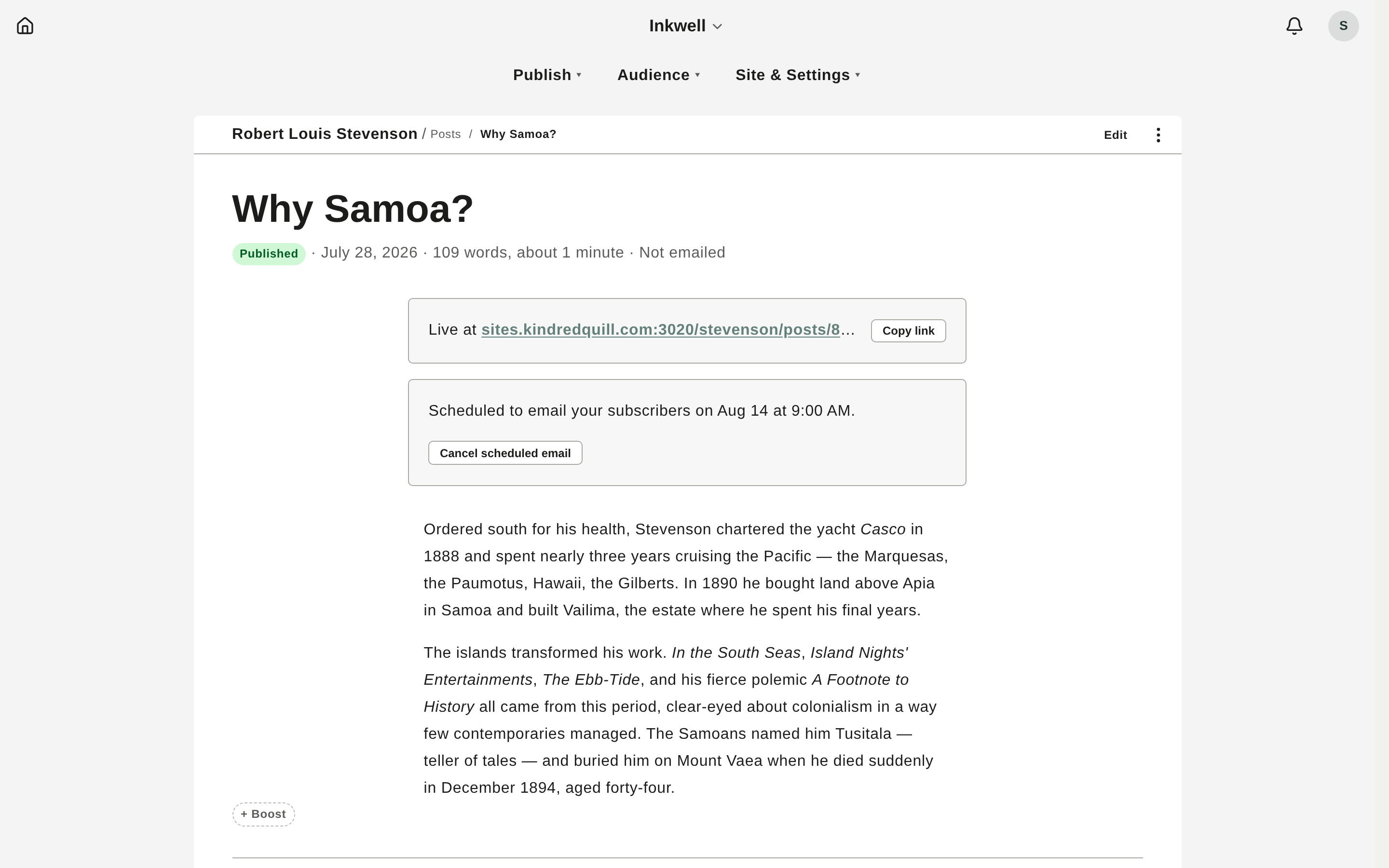
Open a post from the list to see its detail page. From here you can:
- Edit the title, excerpt, author, or body — each save adds a version.
- Pin / Unpin a published post (via the ⋯ menu).
- Revert to draft to pull a post off the public site.
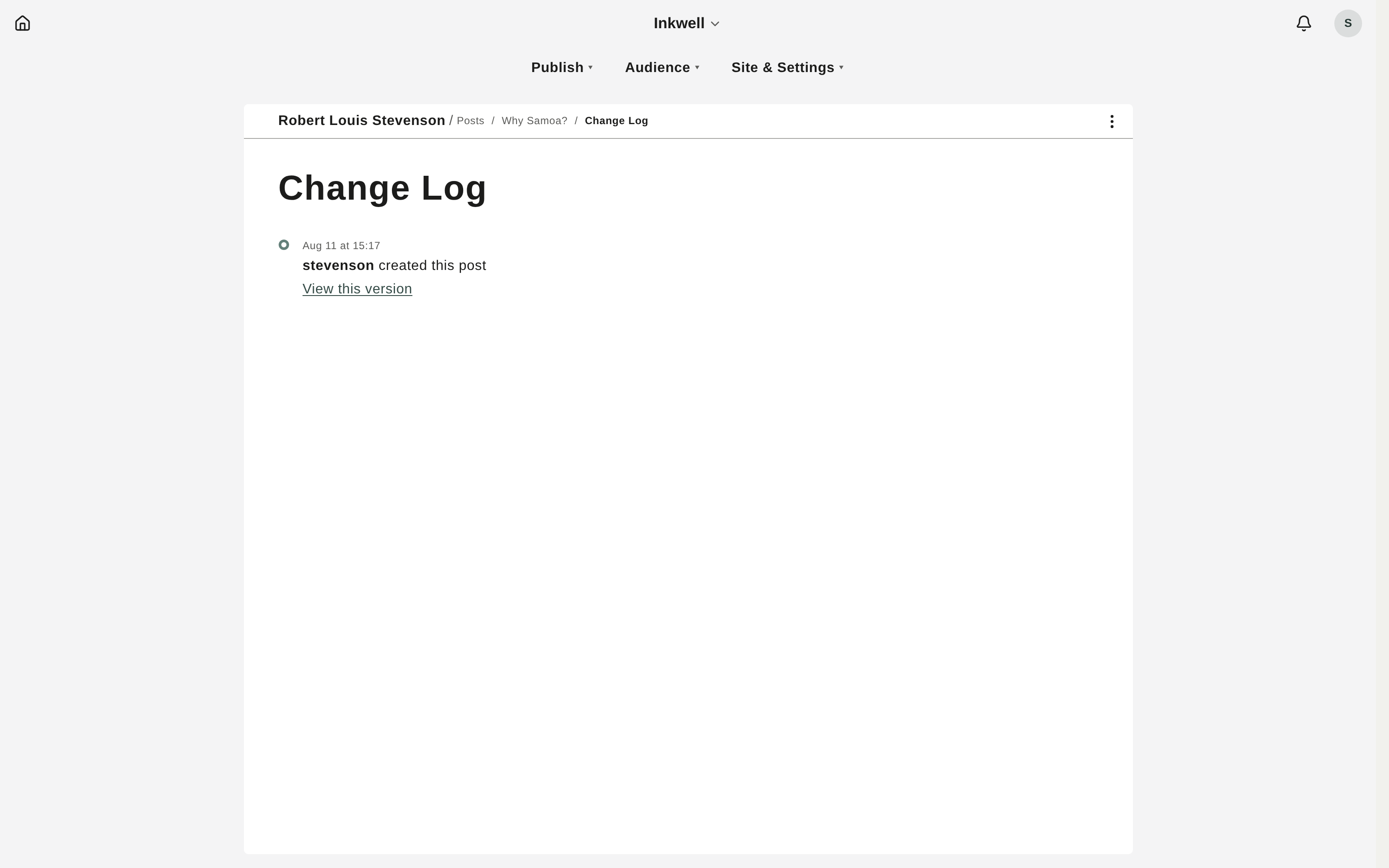
- View history to see every change.
Version history
Every post keeps an immutable change log. Open View history from a post’s ⋯ menu to see each edit with a timestamp. Use See the changes for a word-level diff against the current version, or View this version to read the exact earlier text.
Email a post to subscribers
On a published or scheduled post, a broadcast banner lets you email it to your subscribers — now or on a schedule — and copy the post’s public link to share elsewhere. See Newsletter for the full walkthrough and metrics.
What readers see
Published posts appear at /blog, newest first with any pinned posts on top. Each post has its own page with your byline and publication date, and the blog is available as an RSS feed.