Site Design
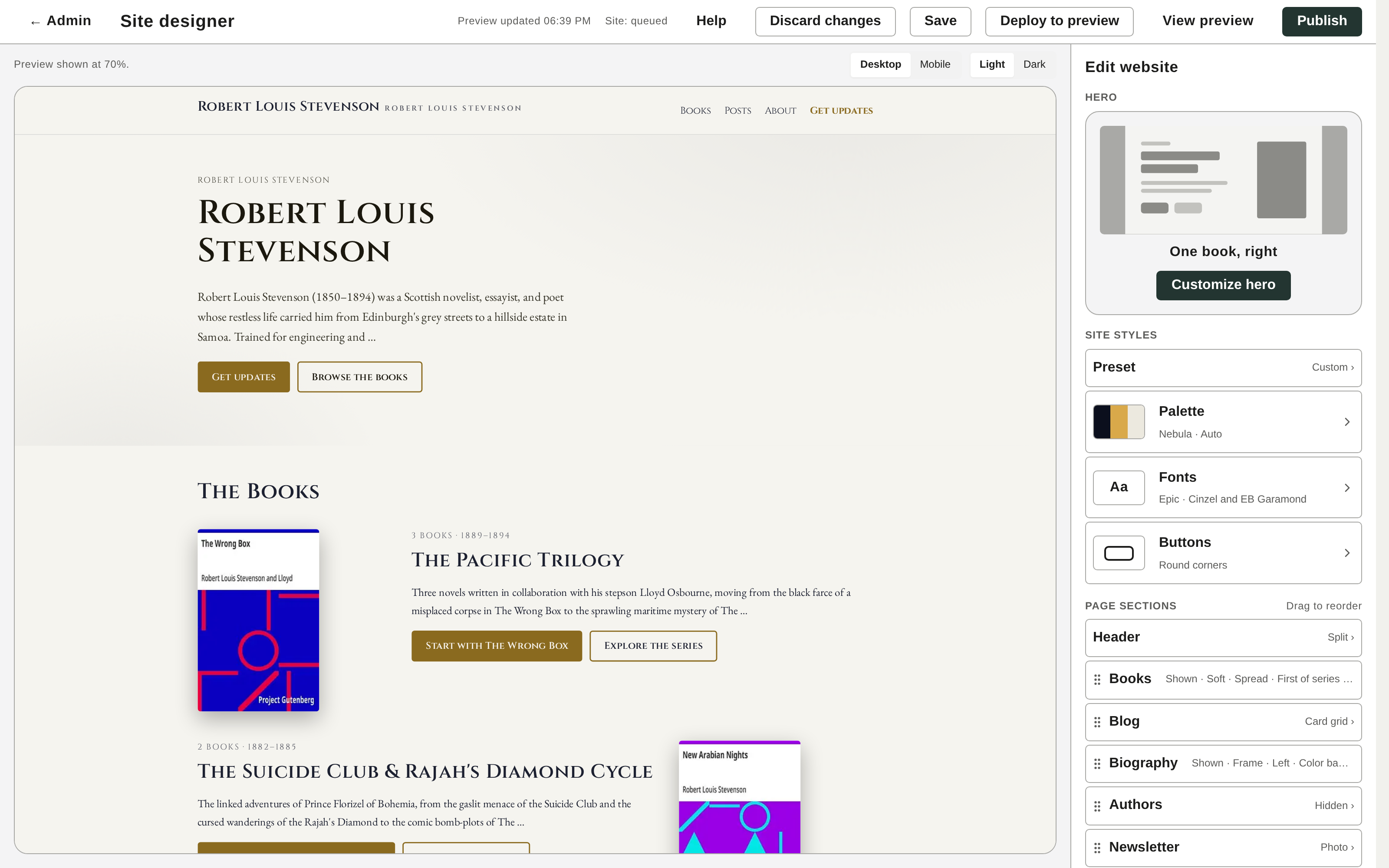
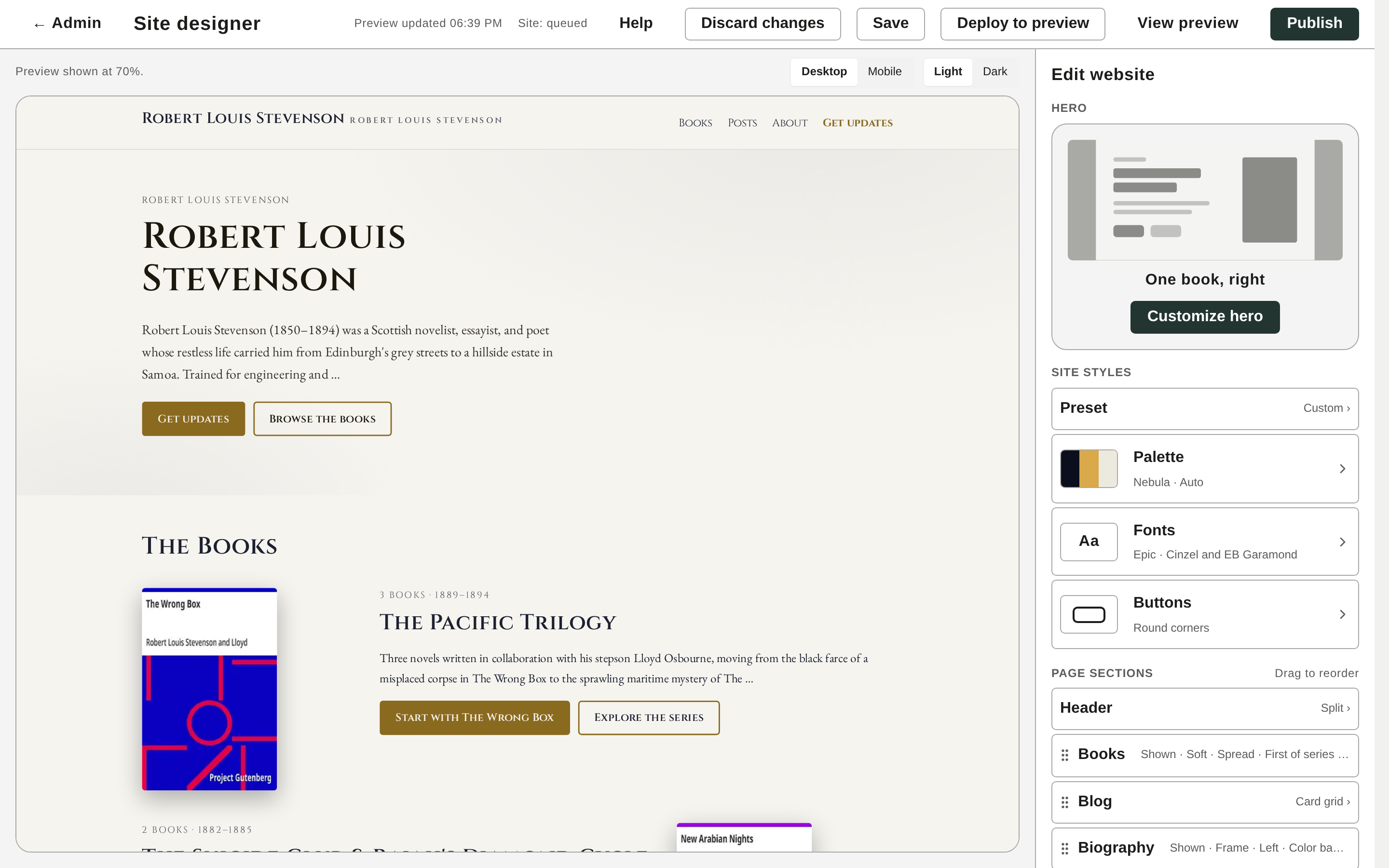
The Site Designer is where you shape how your public site looks — colors, fonts, logo, hero, and the sections on your home page. It shows a live preview of your real site (built from your actual books, posts, and bio) next to a panel of design options, and rebuilds the preview within seconds of every change. Nothing goes live until you Save.
Open it from the admin at Site designer.
How it works
- Live preview. The panel on the left is your real site. It rebuilds on every change (a few seconds behind), so you can experiment freely.
- Save when ready. Your edits stay in your browser until you click Save. Saving stores the design to your account; it ships with your next site publish. Discard changes reverts everything since your last save.
- Your design is yours. Choices are baked into the static site at build time. Readers get a fast page that reflects exactly what you set — they can’t change your colors or layout.
Start from a preset
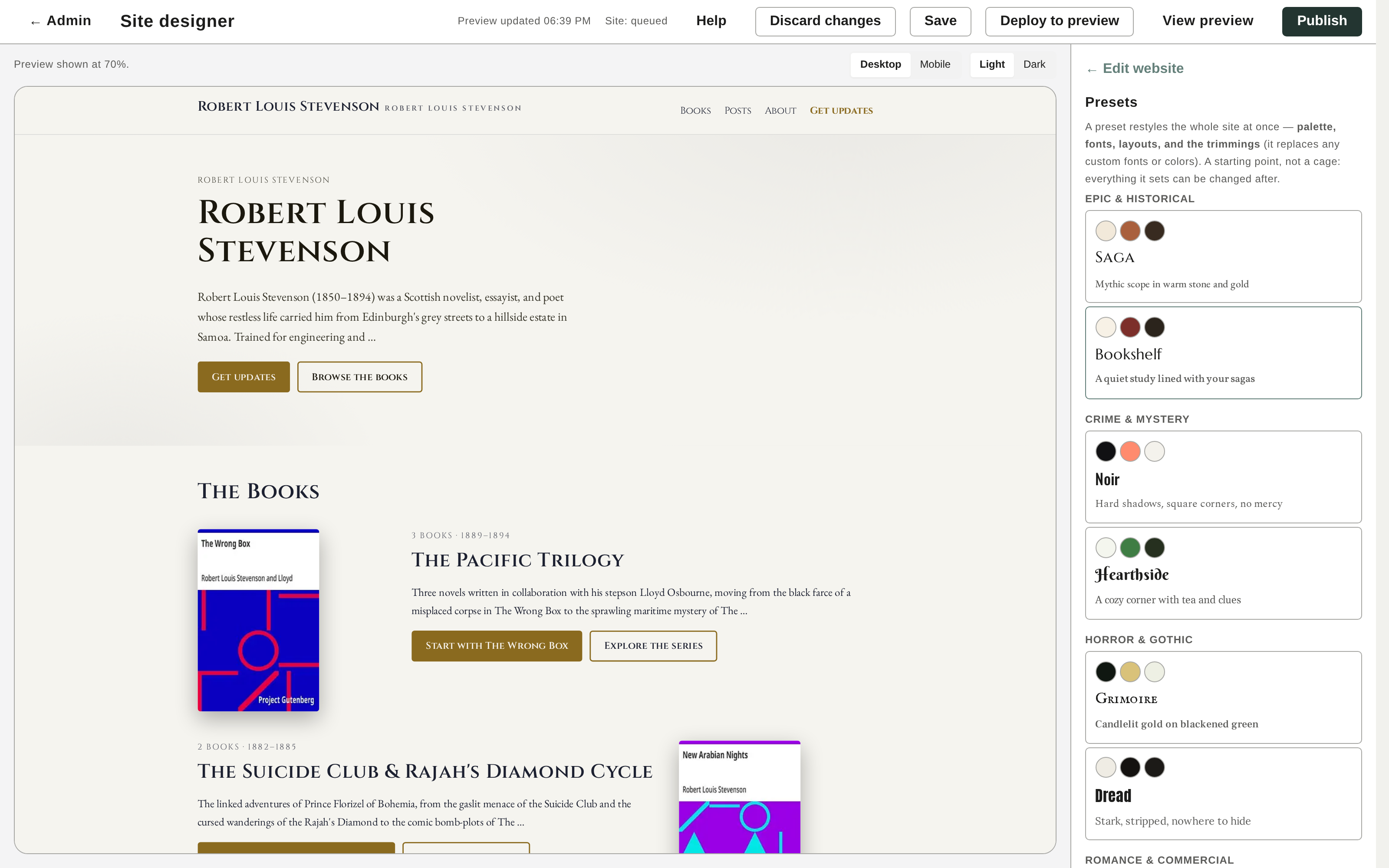
A preset restyles the whole site at once — palette, fonts, layouts, and styling — as a starting point you can then customize.
- In the options rail, under Site styles, open Preset.
- Pick a preset card. Each is grouped by genre (Epic & Historical, Crime & Mystery, and so on) and previews its own palette, display font, and tagline.
- The preview restyles instantly. Adjust any individual choice afterward — presets are a starting point, not a cage.
Colors and mode
- Under Site styles, open the Palette row.
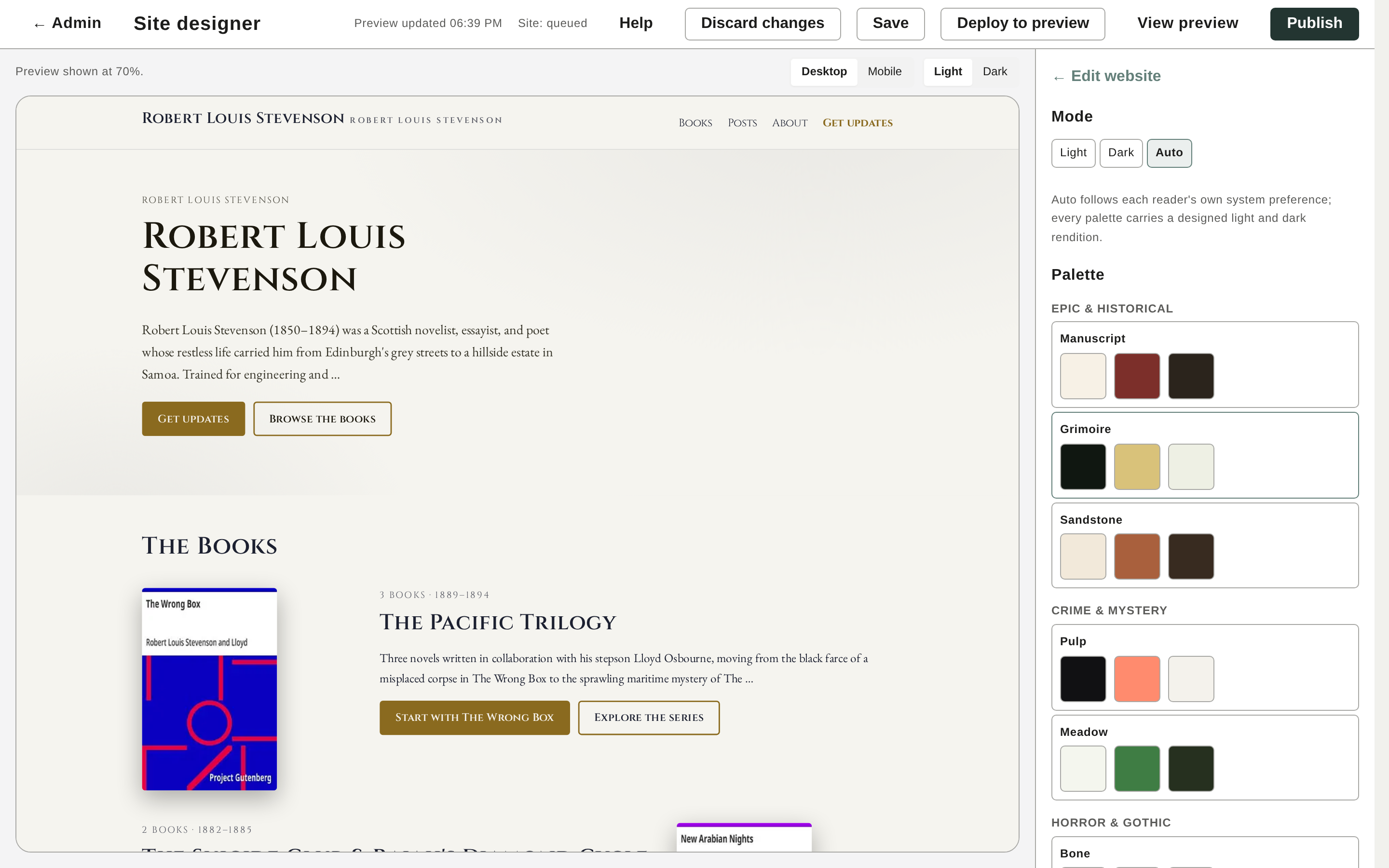
- Choose one of the named palettes (Manuscript, Pine, Nebula, and more), or scroll to Pick your colors to set your own Background, Accent, and Text hues with the color wheel. Readable shades are chosen for you per role.
- Set Mode at the top of the pane:
- Light or Dark — a fixed look for every reader.
- Auto — follows each reader’s own system preference.
Fonts
Under Site styles, open the Font pairing row and choose a pairing (each matches a heading face with a body face that works alongside it). Or use Pick your own fonts to name any Google Font for headings and body.
Logo
- Under Site styles, open Header.
- Drop an image on the Custom logo box (JPG, PNG, AVIF, WebP, or SVG). Your site title becomes the logo’s alt text for accessibility.
- Choose whether to show the site title alongside the logo, or the logo alone.
Design the hero
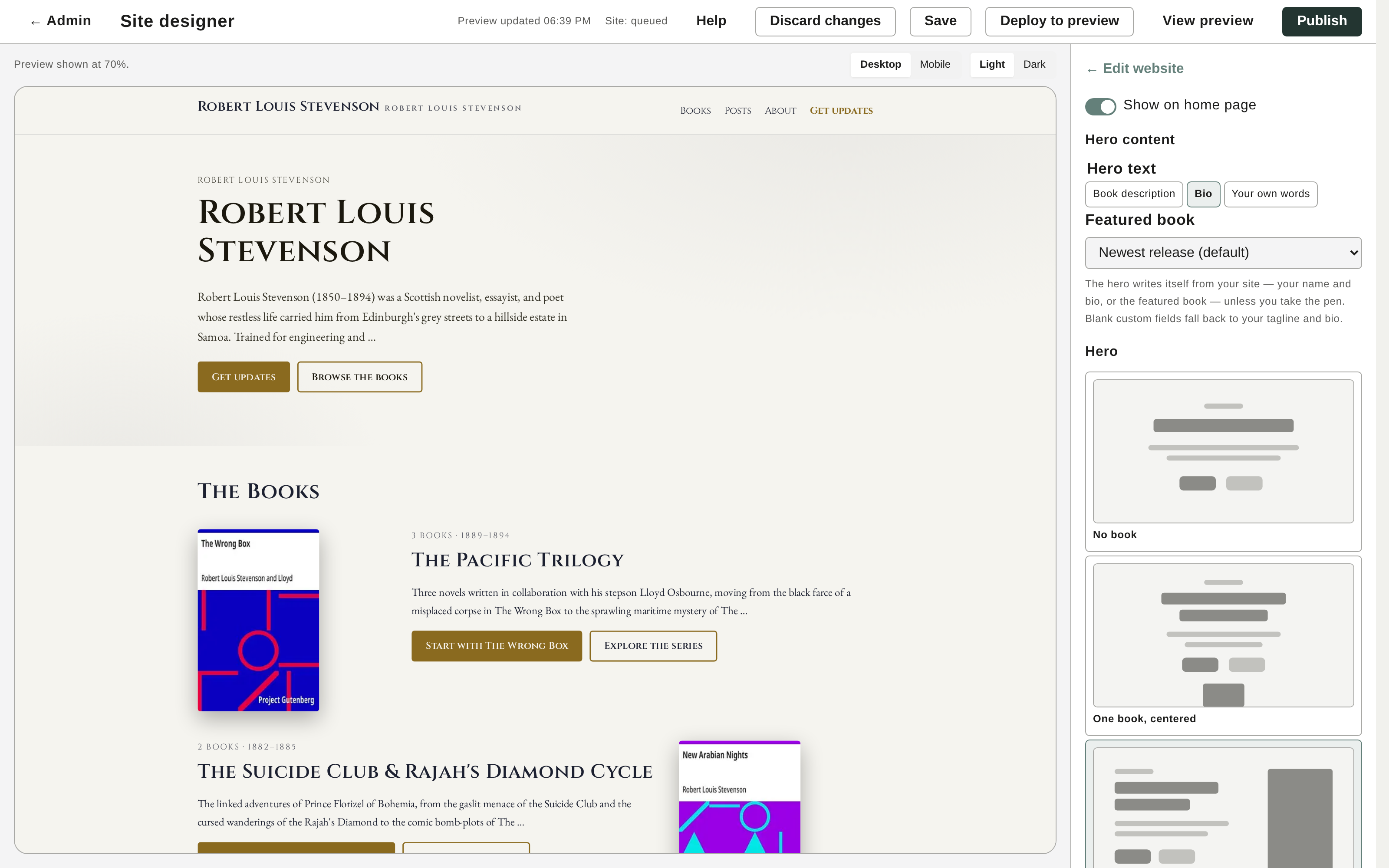
The hero is the opening section of your home page. Open Customize hero to set:
- Show on home page — include the hero or hide it.
- Hero content — your bio, a featured book’s description, or your own words (a custom headline and text).
- Featured book — pick one, or leave it on your newest release.
- Layout — no book, one book centered, one book right, or many books (fanned covers). One-book layouts can show a flat or 3D cover.
- Background — page color, a gradient, a color scrim, blurred cover art, or a banner image you upload — with a scrim slider to darken image backdrops.
Home page sections
Each section under Page sections has its own options. Every section can be shown or hidden on the home page.
- Books — card layout (Spread, Shelf, Grid, Panel, Carousel, and more), whether to show only the first book of each series, and cover-corner rounding.
- Biography — photo shape and side, and the band style behind it.
- Blog — posts as a card grid or a vertical list.
- Newsletter — the signup band style, an optional backdrop image, and your own headline, invitation, and button label.
Use Change section order at the bottom of the rail to reorder Hero, Books, Blog, Biography, and the Email signup.
Publish your design
Click Save to store your design to your account. It goes live with your next site publish (adding a book or post, or a manual publish). Not happy with an edit? Discard changes rolls back to your last save.